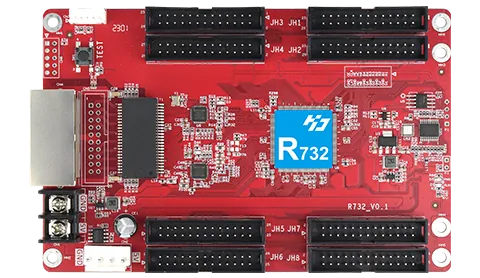
When setting up a Huidu-controlled LED display you work with two programs: HDPlayer on the computer and LedArt on the phone. Drawing on Huidu's official manuals, this guide explains in simple steps how to connect the card, load the scan file, prepare and send content, and set brightness, time and schedules.
Short answer: A Huidu-controlled LED display uses two programs: HDPlayer on the computer and LedArt on the phone. The order is to install the software, connect to the card, load the scan file, create the screen, send content, then set brightness, time and schedules; change the default passwords.
Setup order at a glance
Install the software: Download HDPlayer from Huidu's official download page and install it on a Windows computer.
Connect to the card: Connect by network cable, through the same router, or via the card's own Wi-Fi network.
Open hardware settings: Open Hardware settings from the Settings menu; the program asks for a password.
Load the scan file: In the receiving-card parameters choose the file for your module, or complete the smart setting step by step.
Define the connection: With several receiving cards, enter the card order in connection settings and save.
Create the screen: In screen parameters read the resolution from the card or enter width and height.
Send content: Add video, image, text or clock areas to a programme and send it by cable, Wi-Fi or USB stick.
Finish the settings: Set brightness, time and scheduled on/off, and change the default passwords.
What do the Huidu programs do?
Huidu's official download page lists programs by card type. Which one you need depends on whether your card is full-colour or single/dual-colour.
HDPlayer (Windows): content editing, sending and card management for full-colour asynchronous cards. The hardware settings (scan file) section is also inside it.
HDSet (Windows): screen configuration software for synchronous and asynchronous full-colour systems. HDPlayer's hardware settings open this interface.
HD2020 (Windows): software for single- and dual-colour text cards.
LedArt (Android and iOS): app for finding cards, editing and sending programmes from a phone. Huidu's download page states it supports single/dual-colour and full-colour series.
Connecting the computer to the card
Huidu cards connect in three ways: a network cable straight to the computer, both on the same router, or, if the card has a Wi-Fi module, by joining the card's own wireless network. A direct cable needs no network settings; shortly after the card's network lights come on, the card name and ID appear in HDPlayer's status area.
Through a router, one computer can manage several cards on the same network. If the card is on a different subnet, give it a static IP and add it with manual card search in the Control menu. When setting a static IP, pick an address on the same subnet as the computer that no other device uses.
Loading the scan file (hardware settings)
In HDPlayer go to Settings → Hardware settings. The program asks for a password; the manual gives the factory default as 168 (888 on some versions). You can change it in Settings → System settings.
The window has three parts: sending-card parameters, connection settings and receiving-card parameters. Small single-card screens without a receiving card only show the receiving-card parameters.
In the receiving-card parameters, pick the matching file from the module list or load the file supplied by the company you bought the screen from. If there is no suitable file, the “smart setting” wizard builds the settings with you by watching the module:
Choose the colour type, single-module width, driver chip and decoding type; tick the box if the module scans more than 16 lines.
In the colour channel step, check which colour lights on the module for each state shown and select the same colour.
Enter how many rows one RGB group lights and the scan type by counting the lit rows on the module.
In the point-mapping step, follow the blinking dot on the top-left module and click its match in the table, in order.
Save when the table is complete; if the image is right, send the settings to the card.
Card order and screen parameters
On screens with several receiving cards, the card layout is entered under connection settings. Seen from the front, the first card the sending cable enters is number 1, and the numbering follows the cable path.
For content, if “use hardware settings” is ticked under Settings → Screen parameters, the resolution is read from the card. If unticked, you can enter the device model, width and height manually. Connected cards appear automatically in the device list.
Preparing and sending content
In HDPlayer you add a programme under a screen, then add video, image, text, document, clock and timer areas to the programme. Programme properties set play duration, playback at specific times and background, so a breakfast menu in the morning and a promotion in the afternoon can rotate automatically.
Finished content is sent directly over cable or Wi-Fi. The same content can be sent in one go to several screens with the same card model and size using cluster sending. Without a network connection, a USB stick works too:
Plug the stick into the computer and open Control → Export to USB in HDPlayer.
Choose programme update to copy the programme to the card, or direct play to play it from the stick.
Plug the stick into the card; when copying finishes you can remove it and the screen plays the new programme.
If the device lock is on, enter the lock password on the export screen.
Brightness, time and scheduling
Brightness can be set manually, by time periods, or automatically if an external light sensor is fitted. High brightness by day and low at night is easier on the eyes and saves energy.
The card clock can be synced with the computer in one click or set manually; scheduled programmes depend on it. Scheduled on/off blanks the screen at set times; per the manual it only cuts the video signal and the screen stays powered. Scheduled restarts can be set to prevent freezes on long-running screens.
The screen test section (grey levels, colours, grid, dots) makes dim or faulty LEDs easy to spot; the same test can be started with the TEST button on the card. Do not cut power to the card during a firmware update.
Managing from a phone: LedArt
Install LedArt by searching “LedArt” on Google Play or the App Store. Turn off mobile data, Bluetooth and any VPN, then join the card's Wi-Fi network in the phone settings. If the phone asks whether to switch away from a network without internet, choose to stay; otherwise the card will not appear.
The card shows as online under Device. Under Programme create a new screen, select the card, enter width, height and colour type, add content and send. If the image is wrong, choose a module file in the app's hardware settings; if that does not work, run the smart setting.
The manual gives the card's factory-default Wi-Fi password as 88888888; change it in Wi-Fi settings after installation. AP mode (the card's own network) suits a single card; Station mode (cards joined to a shared router) suits several. If the password is lost, the S1 button on the card restores the factory password; as this can also affect screen settings, contact technical support first.
Common mistakes
Changing network settings when the card is not found: check the cable lights first, and turn off mobile data and VPN on the phone.
Choosing a static IP on a different subnet from the computer, or one already in use.
Mistaking scheduled off for a power cut: the screen goes dark but stays powered.
Leaving the programme resolution different from the screen's real resolution.
Not changing the factory-default Wi-Fi and hardware-settings passwords.
Cutting power to the card during a firmware update.
Frequently asked questions
What is the HDPlayer hardware settings password?
Huidu's manual gives the factory default as 168 (888 on some versions). We recommend changing it in Settings → System settings to prevent unauthorised changes.
HDPlayer cannot find the card. What should I do?
Check that the network cable and the card's network lights are on and that the computer's network connection is normal. If the card is on another subnet, add it by entering its IP address with manual card search in the Control menu.
Can I manage a Huidu screen from my phone?
Yes. The LedArt app is available for Android and iOS. Join the card's Wi-Fi or the same router as the card to send content and make basic settings.
What if my module's scan file is not in the list?
The smart-setting wizard identifies the module with you: you pick colour channels, row counts and dot order by watching the screen. When finished the settings are saved and sent to the card.
If you are stuck on the scan file, HDPlayer or LedArt, the ARLEDSCREEN technical team can help. Send us the card model and screen size and we will get back to you.
This guide was written in our own words using the manufacturers' official manuals and download pages. Menu names and passwords can vary by software or device version; follow your device's manual.