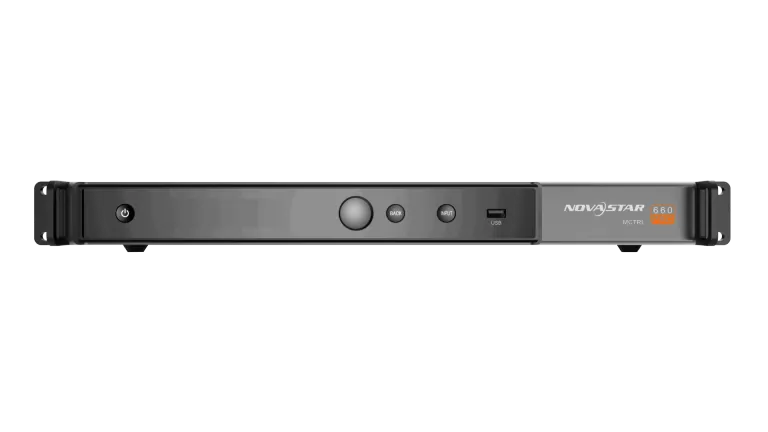
On NovaStar systems, screen configuration and content management use separate programs. NovaLCT makes the screen recognise its modules and puts the cabinets in the right order; ViPlex Express (computer) and ViPlex Handy (phone) prepare and publish content. Drawing on NovaStar's official manuals, this guide explains the order in our own words.
Short answer: On NovaStar systems, NovaLCT configures the screen, while ViPlex Express (computer) and ViPlex Handy (phone) prepare and publish content. The order is to install NovaLCT, connect to the sending card, load the receiving-card file, set the screen connection, save settings permanently and publish content.
Setup order at a glance
Install NovaLCT: Download NovaLCT from NovaStar's official download page and install it on a Windows computer.
Connect to the sending card: Connect the computer to the sending card by USB or network cable; NovaLCT finds it automatically.
Log in: Choose the advanced synchronous system login from the User menu and enter the password.
Load the receiving-card file: In Screen Configuration, Receiving Card tab, load and send the .rcfgx/.rcfg file; otherwise use Smart Settings.
Set the screen connection: Enter the receiving-card columns and rows and the cable order, then send to hardware.
Save permanently: Save the settings to hardware and back up the configuration file to the computer or cloud.
Publish content: Connect to the player with ViPlex Express or ViPlex Handy, prepare content and publish it.
Finish the settings: Set brightness, screen on/off schedule and time sync; change the default passwords.
What do the NovaStar programs do?
NovaStar has a program for each job. Which ones you need depends on whether your screen runs synchronously (sending card or video processor) or asynchronously (multimedia player).
NovaLCT (Windows): the screen configuration tool. Sending- and receiving-card settings, receiving-card file loading, screen connection, brightness, calibration and monitoring. Used for synchronous products and for the screen settings of asynchronous players.
ViPlex Express (Windows): content editing and publishing from a computer. In async mode it manages players: content, brightness, on/off schedules and time sync.
ViPlex Handy (Android and iOS): phone app for player management over LAN or the internet, content publishing, brightness and quick screen configuration.
VNNOX: NovaStar's cloud platform, used to publish content to internet-connected players remotely and monitor screen status.
Connecting and logging in to NovaLCT
Install NovaLCT and connect the computer to the sending card by USB or network cable. If the connection is right, the program finds the card on its own and shows the number of connected cards on the main screen. All commands and configuration files travel over this control cable.
To change settings go to User → Advanced Synchronous System User Login. The manual gives the factory-default password as admin; we recommend changing it under User → Change Password.
On synchronous screens the computer's display resolution must be equal to or larger than the LED screen's resolution, or part of the image will not reach the screen.
Loading the receiving-card file (.rcfgx / .rcfg)
The Receiving Card tab in the Screen Configuration window is where the scan file is loaded. If you have the .rcfgx or .rcfg file for your module, load it from file and send it to the receiving cards; if the image is correct, save.
NovaLCT can also find the file in the cloud (VNNOX Care): select the manufacturer and enter the module ID or file name. If the receiving-card firmware does not match the file, the program asks whether to upgrade.
Without a file, use the Smart Settings wizard: enter the module chip, data type, module type, pixel count and scan details, then tick options based on what you see on the module. You can export the finished settings as an .rcfgx file and keep it.
Screen connection and saving permanently
In the Screen Connection tab enter the number of screens and the receiving-card columns and rows, and draw the path the cable takes between cabinets. Usually each receiving card drives one cabinet. Then send it to hardware.
Send lets you try the settings on the screen. To keep them after a power cut you must save them to hardware; per NovaStar's manual, settings saved to hardware are kept even when power is lost. Finally save the system configuration file to the computer; you can also back up the receiving-card file and screen connection file (.scr) to VNNOX Care.
Brightness can be set manually in NovaLCT; with a light sensor connected, automatic adjustment to ambient light can be configured.
Content and scheduling with ViPlex Express (computer)
ViPlex Express is the Windows program for sending content to asynchronous players (for example the Taurus series). The computer connects to the player by network cable, through the player's own Wi-Fi network, or over the same wired or wireless LAN. The player's Wi-Fi name is “AP” plus the last 8 digits of its serial number; the Wi-Fi password is printed on the product label.
You log in to the player as the admin user. Per the manual, the factory-default password depends on the firmware version (123456 on older Taurus versions, SN2008@+ on newer ones). Change the Wi-Fi and login passwords at first login.
Content is built in ViPlex as a “solution”:
Create a new solution and set its resolution to match the screen.
Add pages and place video, image, text, clock or document windows on each page.
Schedule the hours and days each page plays.
Save, click Publish and select the players that should receive it.
Terminal control: brightness, on/off and time
In ViPlex Express terminal control you set brightness manually or on a schedule, plan when the screen turns on and off, and set scheduled restarts.
Time sync can be manual, NTP (internet time), GPS or RF. If the same content should play at the same moment on several screens, the device clocks must be synced.
Managing from a phone: ViPlex Handy
ViPlex Handy is available on Google Play and the App Store. On first launch you choose between LAN control and internet control. On site, joining the player's Wi-Fi and choosing local control is the most practical route; when the device appears in the list, connect with the admin password. If the app warns about a weak password, change it.
The device management screen covers time zone, volume, colour temperature, screen on/off rules, manual and smart brightness, scheduled restart and time sync. With screen configuration enabled, the screen connection can also be set from the phone; per the manual, sending an .rcfgx receiving-card file is only available in the Android version and the file must first be stored on the phone.
Remote management with VNNOX
If the screen is connected to the internet, the player can be bound to a VNNOX account via ViPlex Express or ViPlex Handy. Content can then be published without visiting the screen, and VNNOX Care shows screen status. Make sure the device has internet access before binding.
Common mistakes
Sending receiving-card settings but not saving them to hardware: they are lost after a power cut.
Leaving the computer's display resolution below the LED screen's (synchronous system).
Setting a ViPlex solution resolution different from the screen.
Trying the .rcfgx file of a similar module: it must match your model and receiving-card firmware.
Expecting synchronised playback on several screens without setting up time sync.
Leaving the factory-default Wi-Fi and admin passwords unchanged.
Frequently asked questions
What is the NovaLCT default password?
NovaStar's manual gives the factory default for the advanced synchronous system login as admin. We recommend changing it under User → Change Password after installation.
What is an .rcfgx file?
It is the configuration file for NovaStar receiving cards and holds how the module should be driven. In NovaLCT it is loaded on the Receiving Card tab, sent to the receiving cards and saved to hardware.
Should I use ViPlex Express or ViPlex Handy?
Both manage the same players. ViPlex Express on a computer is better for detailed editing and many screens; ViPlex Handy on a phone is handier for quick changes on site.
Can I manage a NovaStar screen remotely?
Yes, if the player is online. After binding the device to a VNNOX account with ViPlex Express or ViPlex Handy, content can be published remotely and screen status monitored.
For NovaLCT configuration, receiving-card files or ViPlex setup, contact the ARLEDSCREEN technical team. Share the controller model and screen size and we will get back to you.
This guide was written in our own words using the manufacturers' official manuals and download pages. Menu names and passwords can vary by software or device version; follow your device's manual.